Not all photos are created equal when it comes to AI-based 3D generation. I learned this lesson early in my testing, when I uploaded a dimly lit group shot and received a model that looked like a melted blob. But when I fed the tool a well-composed product photo with a clean background, the output was a recognizable, printable mesh. That contrast led me to run a systematic series of tests across different image types, to understand exactly what kind of input yields usable results, and where the tool falls short. The platform itself offers guidance on this, but nothing replaces hands-on experimentation. Over several days, I tested everything from sharp logos to blurry sketches, and the patterns that emerged were clear. If you are considering using the image to stl converter for your projects, understanding these patterns will save you time, credits, and frustration.
The Core Conversion Logic: What the AI Actually Reads
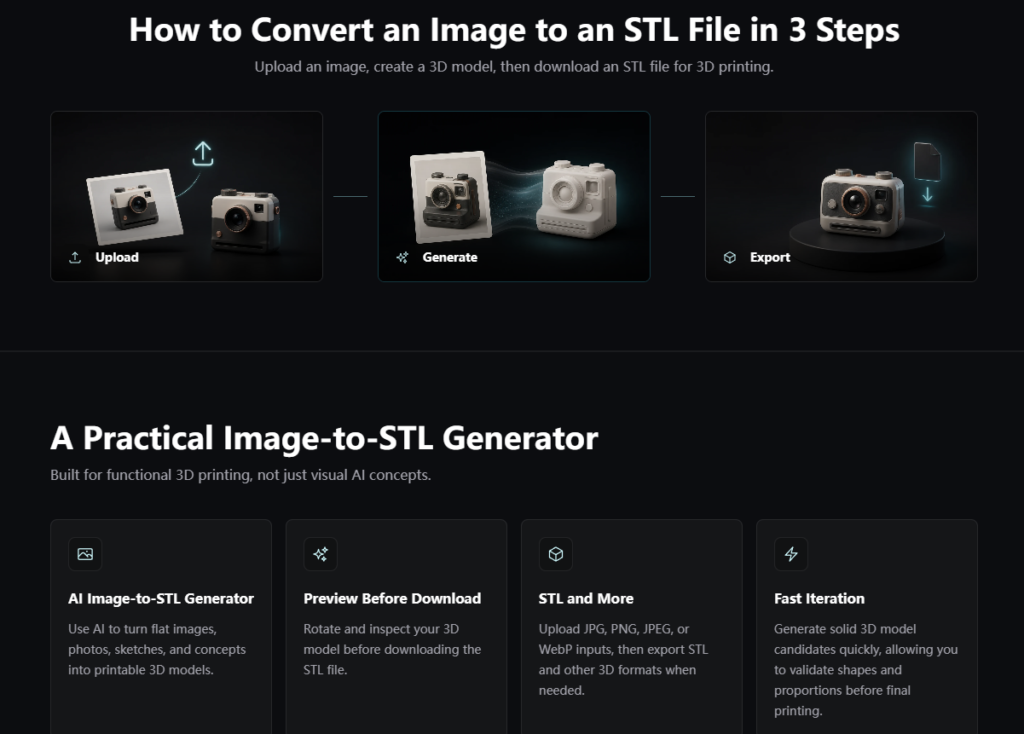
The system analyzes several key elements from your uploaded image: the main subject, its outer silhouette, the contrast between foreground and background, and any visible depth cues that can be inferred from lighting or shading. For photographs and realistic sketches, the AI attempts to reconstruct a volumetric form, not just a heightmap. This means it looks for edges and boundaries to define the shape, then fills in the volume based on what it understands about the object’s likely three-dimensional structure. For logos, text, or flat graphic art, the output behaves more like an extrusion or relief, which is appropriate given the limited depth information.

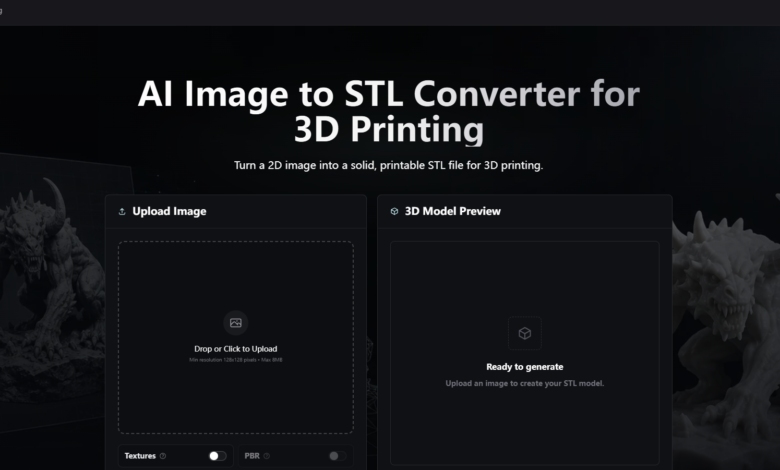
In practice, this approach works well for images where the subject is clearly separated from the background and has consistent lighting. It struggles when the subject blends into the background, has reflective surfaces that confuse the edge detection, or contains very thin elements that are difficult to represent as solid geometry.
Testing Six Different Image Categories
I organized my tests around the image types most users are likely to upload, and rated the results based on printability and the amount of post-processing required.
Category 1: Product Photos With Clean Backgrounds
These performed best. A well-lit photo of a single object on a white or plain background produced a model that captured the overall shape with good fidelity. The mesh was typically solid, passed manifold checks, and required only minor smoothing or thickness adjustments. This is the ideal use case, and the tool handled it consistently well.
Category 2: Character Sketches and Concept Art
Hand-drawn or digital sketches with clear outlines and minimal shading produced recognizable starting models. The AI preserved the pose and proportions, though the geometry was often rougher than product photo outputs. Some cleanup in Blender was usually needed, but the foundation was solid enough to save hours of initial blocking.
Category 3: Logos and Flat Graphics
Simple logos with high contrast and clean lines extruded cleanly into relief-like models. The results were predictable and required minimal adjustment. For users making signage, badges, or embossed designs, this workflow is straightforward and effective.
Category 4: Photos With Busy Backgrounds
Images where the subject was not clearly separated from the background produced inconsistent results. The AI often struggled to identify the correct boundaries, resulting in extraneous geometry or missing parts. Cropping the subject or using a background-removal tool before upload improved outcomes significantly.
Category 5: Low-Contrast or Poorly Lit Photos
These were the most problematic. Without strong edges and clear lighting, the AI lacked the visual cues needed to reconstruct a believable form. The resulting models were often incomplete or distorted. Using an image editor to boost contrast and clarify edges before upload is strongly recommended.
Category 6: Highly Detailed or Intricate Images
Images with many small parts, thin structures, or fine details produced models that required substantial cleanup. The AI could capture the overall form, but small features were often lost or merged. For highly detailed artistic models, professional sculpting tools remain the better choice.
A Practical Comparison of Input Quality and Output Usability
Based on my test results, here is a summary of how different image characteristics affect the final model:
| Image Characteristic | Effect on Output | Recommended Action |
| Strong contrast, clear edges | Solid, printable mesh | Upload as-is |
| Busy background | Confused boundaries | Crop or remove background |
| Low contrast | Incomplete or distorted form | Increase contrast manually |
| Thin features | Fragile or missing details | Reinforce in modeling software |
| Reflective surfaces | Unreliable depth interpretation | Adjust lighting in the photo |
| Simple silhouette | Clean, recognizable geometry | Ideal for quick results |
The Realistic Limitations You Should Know
The platform is honest about its constraints. Not every image will convert perfectly, and some will need significant cleanup. Complex or detailed images may not convert accurately into clean geometry. Highly artistic or intricate models are still better handled by dedicated modeling tools. The generated models often serve best as starting points, not finished products.
In my testing, the most reliable results came from images that followed three simple rules: single subject, good lighting, and simple background. Images that violated any of these rules required additional work, either in pre-processing the image or post-processing the model.
Who Gets the Most Value From This Tool
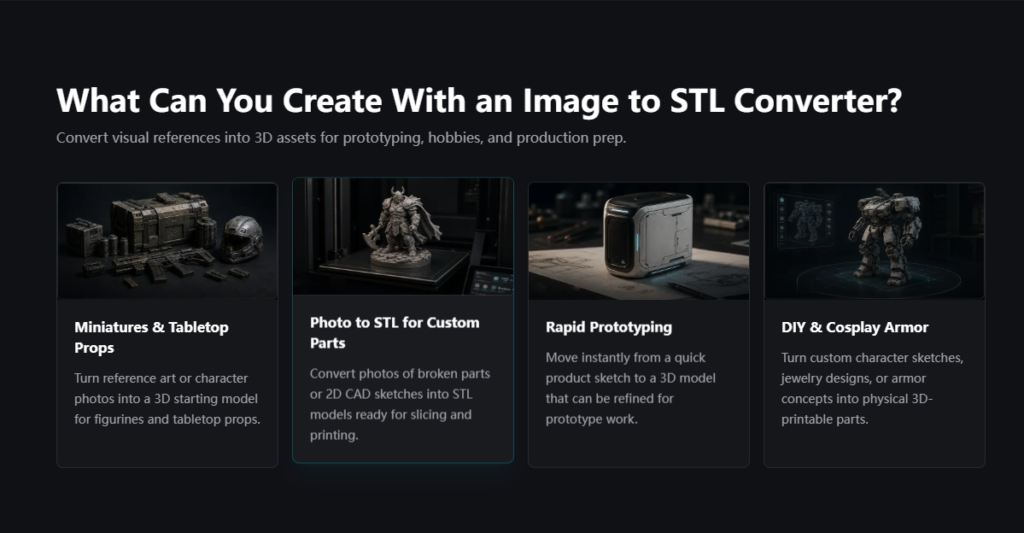
Based on the test results, this image to stl converter is most useful for users who work with clear, well-composed reference images and need a fast path to a printable mesh. It is ideal for makers who prototype product concepts, hobbyists who turn sketches into miniatures, designers who need quick visual validations, and educators who bring diagrams into the physical world.
It is less suitable for users who demand precise dimensions, require ultra-fine details, or work with challenging source images that cannot be easily improved. For those cases, traditional modeling or professional photogrammetry may be more appropriate.
Pricing and Commercial Use Considerations
The tool uses a credit-based system rather than a subscription. The Starter pack costs $9.90 for 800 credits, the Pro pack costs $29.90 for 3,000 credits, and the Max Value pack costs $69.90 for 8,000 credits. Credits are valid for one year and include a commercial license, allowing you to print and sell physical models without extra fees. Credits are only spent on successful generations, so failed attempts do not waste your balance. This pay-as-you-go model works well for occasional users who do not want to commit to a monthly subscription.
See also: How To Automate Detection Of The Threats Across The Environments Without Losing Sleep?
Making the Most of Your Uploads
Through these tests, I learned that the effort you put into your source image directly affects the quality of the output. A few minutes spent cropping, adjusting brightness, or removing a distracting background can transform a mediocre result into a usable model. The tool itself does not require any special skills, but a basic understanding of image composition will significantly improve your success rate. For users willing to invest that small amount of upfront effort, the payoff is a fast, reliable way to turn visual ideas into physical objects.